
Call Flow Designer shows the whole setup as four vertical columns, read from left to right in the direction of the call.
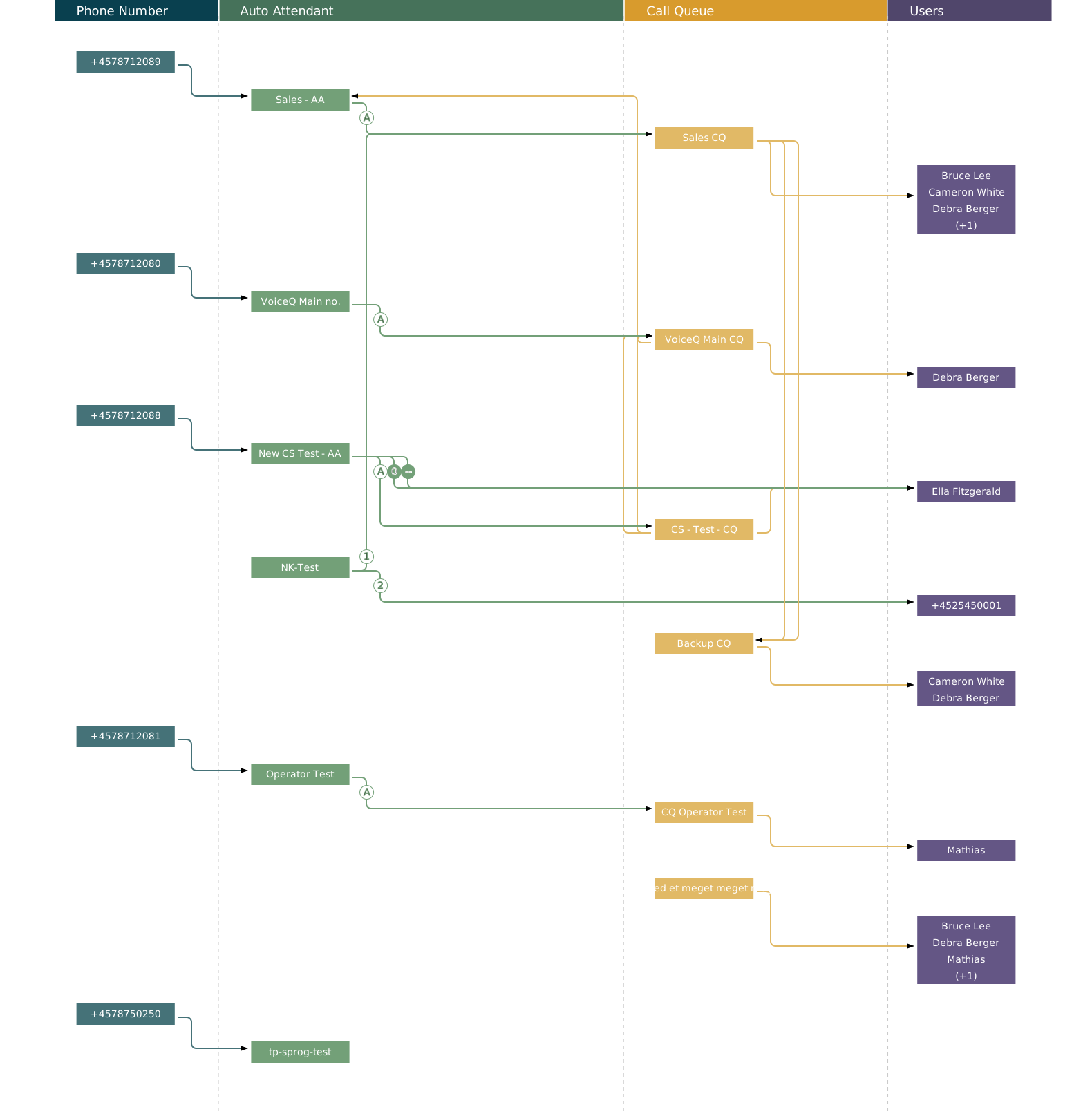
The four columns
- Phone Number — the phone numbers that point into the setup.
- Auto Attendant — menus, business hours and key presses.
- Call Queue — waiting queue, routing to agents and overflow.
- Users — end recipients: agents, individual users and external numbers.
Follow a single call path
Click a node to highlight the exact path that node belongs to. Everything else dims, so you see only the objects related to your selection. Click an empty area to clear the highlight.
Clicking a phone number shows an info panel with that number's details. Clicking an auto attendant or a call queue opens the configuration panel.
See dependencies with pin
The pin icon in each column header lets you pin an object — a number, an auto attendant, a queue or a user — and see the references and dependencies attached to it. Use it before you try to delete anything.
Synchronisation with the Teams Admin Center
Above the canvas you will find the time of the last synchronisation and a refresh button. If someone has changed something directly in the Teams Admin Center since then, the change is not necessarily reflected yet. Check the timestamp before you start troubleshooting.