
Everything in DDI Manager rests on number ranges. A number range is a contiguous interval of phone numbers you have received from a carrier — for example +45 32 10 11 00 to +45 32 10 11 99. If a number does not exist in a range, it cannot be assigned, labelled or counted.
You find the overview under DDI Manager → DDI Ranges.
The two tables
The page holds two tables that work together. The upper one lists the ranges. The lower one is empty until you click a range above — then it unfolds that range's individual numbers.
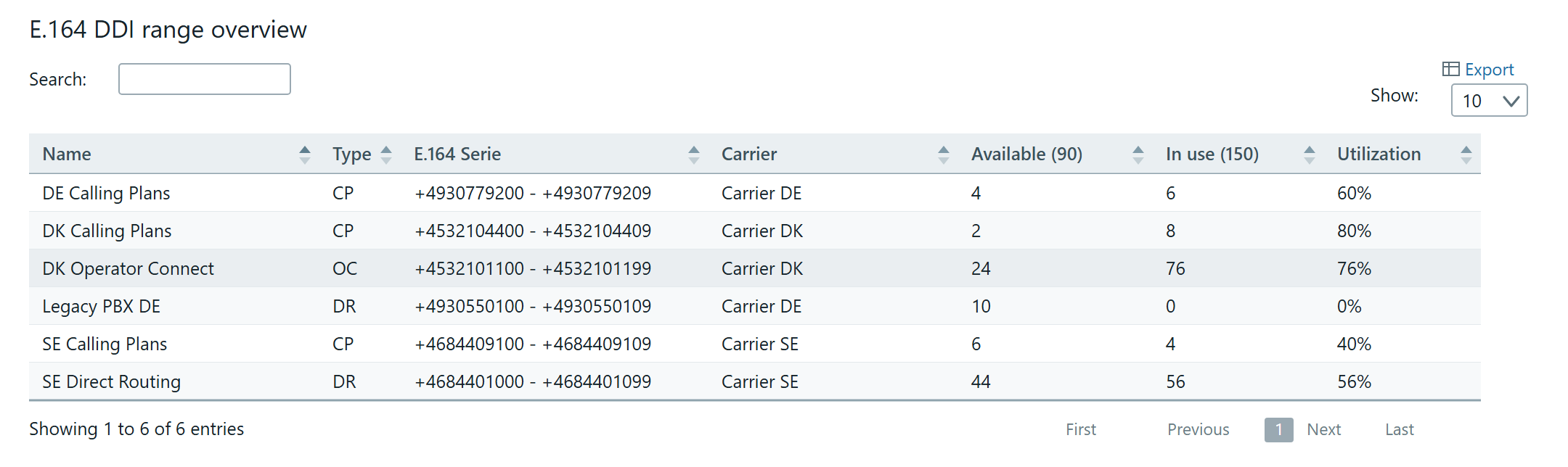
E.164 DDI range overview
- Name — What it shows: The name you gave the range when you created it
- Type — What it shows: The connectivity type:
DR,OCorCP. See below - E.164 Serie — What it shows: The interval from first to last number
- Carrier — What it shows: Who the range comes from
- Available — What it shows: How many numbers in the range are not in use
- In use — What it shows: How many numbers are assigned
- Utilization — What it shows: How much of the range is in use, as a percentage
Important about the figures in the headings. The Available and In use columns each carry a number in brackets — for example Available (204). That is the total for the whole tenant, not for the range you have selected. The figure stays the same whichever range you click.
The connectivity types
- CP — Means: Microsoft Calling Plans · What it entails: Microsoft provides the PSTN connection itself
- OC — Means: Operator Connect · What it entails: An operator in Microsoft's Operator Connect programme provides the connection directly into Teams
- DR — Means: Direct Routing · What it entails: You or a partner connect Teams to the PSTN via an SBC
The connectivity type is set when the range is created, and it helps determine which ranges can be assigned from for an individual user.
E.164 assignments
Once you have clicked a range, the lower table shows the numbers in it.
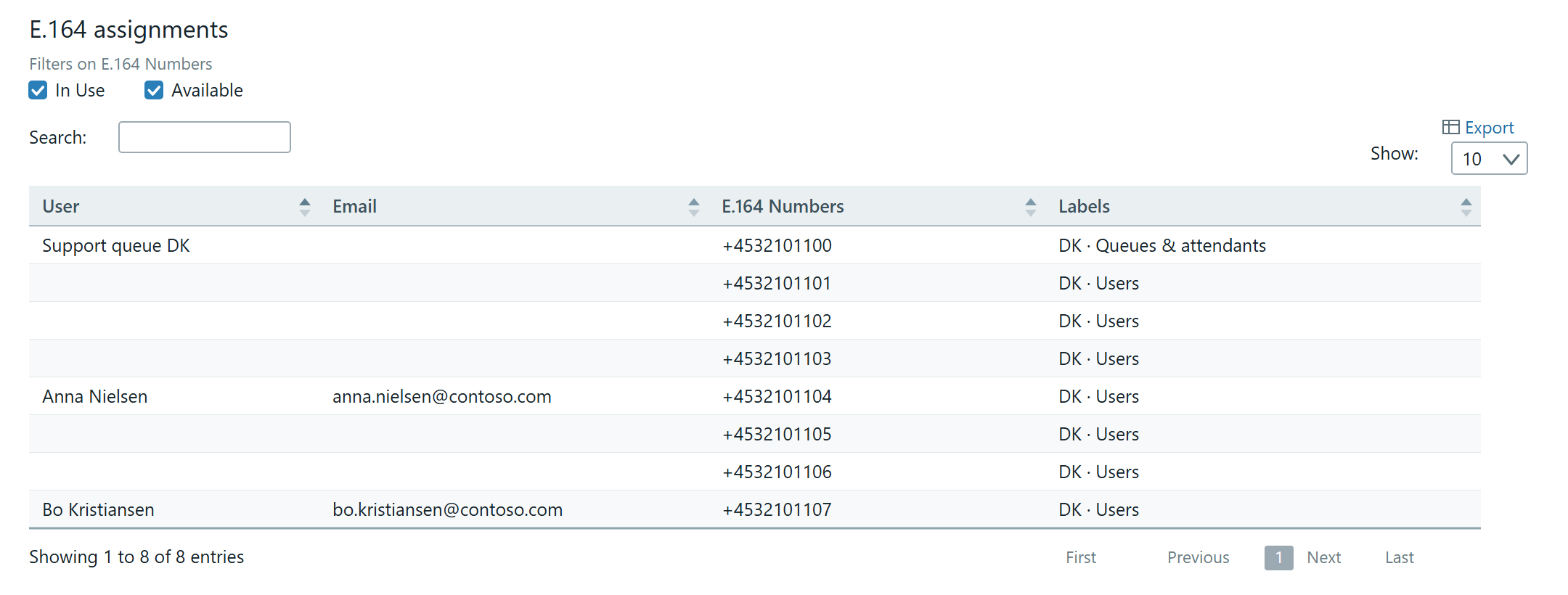
- User — What it shows: Who the number is assigned to
- Email — What it shows: The user's address
- E.164 Numbers — What it shows: The number itself
- Labels — What it shows: The labels the number carries. See Labels in DDI Manager
Above the table sits Filters on E.164 Numbers with two checkboxes, both switched on: In Use and Available. Switch In Use off and you see only the available numbers in the range — the quickest route to "what can I give the next new starter?".
Searching and exporting
Both tables have a Search field that searches everything in the table — name, number, carrier, user. And both have an Export link that puts the displayed content into an .xlsx file.
One thing to watch with the export: the Labels column is not included in the file. If you need to follow up on the labels, that happens on screen. See Find labels in the number overview.
At the bottom of each table you can choose how many rows are shown at a time — 10, 25, 50, 100 or 250.
Where ranges are created
Creating a range does not happen here, but under the gear icon on the left. The overview on this page is for reading; the setup lives elsewhere. See Create a number range.