
A number range has to exist in DDI Manager before its numbers can be assigned, labelled or counted. Creating one happens under the gear icon on the left — not on the DDI Ranges page from the landing page, which is for reading only.
Watch the two similar names. The landing page tile is DDI Ranges; the settings item is DDI ranges. The one you need here is the one under the gear icon.
How to do it
- Click the gear icon on the left and choose DDI ranges under Settings
- Click
Create DDI range. A panel slides in from the right - Choose the customer under
Customer. If you administer several customer environments, the range has to sit under the right one - Enter the carrier under
Carrier. This is a free text field, not a list — write the name in a form you will recognise later - Choose the
Connection Type. There are three options: Calling Plan, Direct Routing and Operator Connect. Direct Routing is preselected. This choice is what becomesCP,DRorOCin the overview - Enter the interval in
FromandTo. Both fields are prefilled with a country code. Write the full number in E.164 format — country code and number without spaces - Give the range a name under
Nr. Serie name. The name is what colleagues read in the overview - Click
Create. The range appears in the table immediately
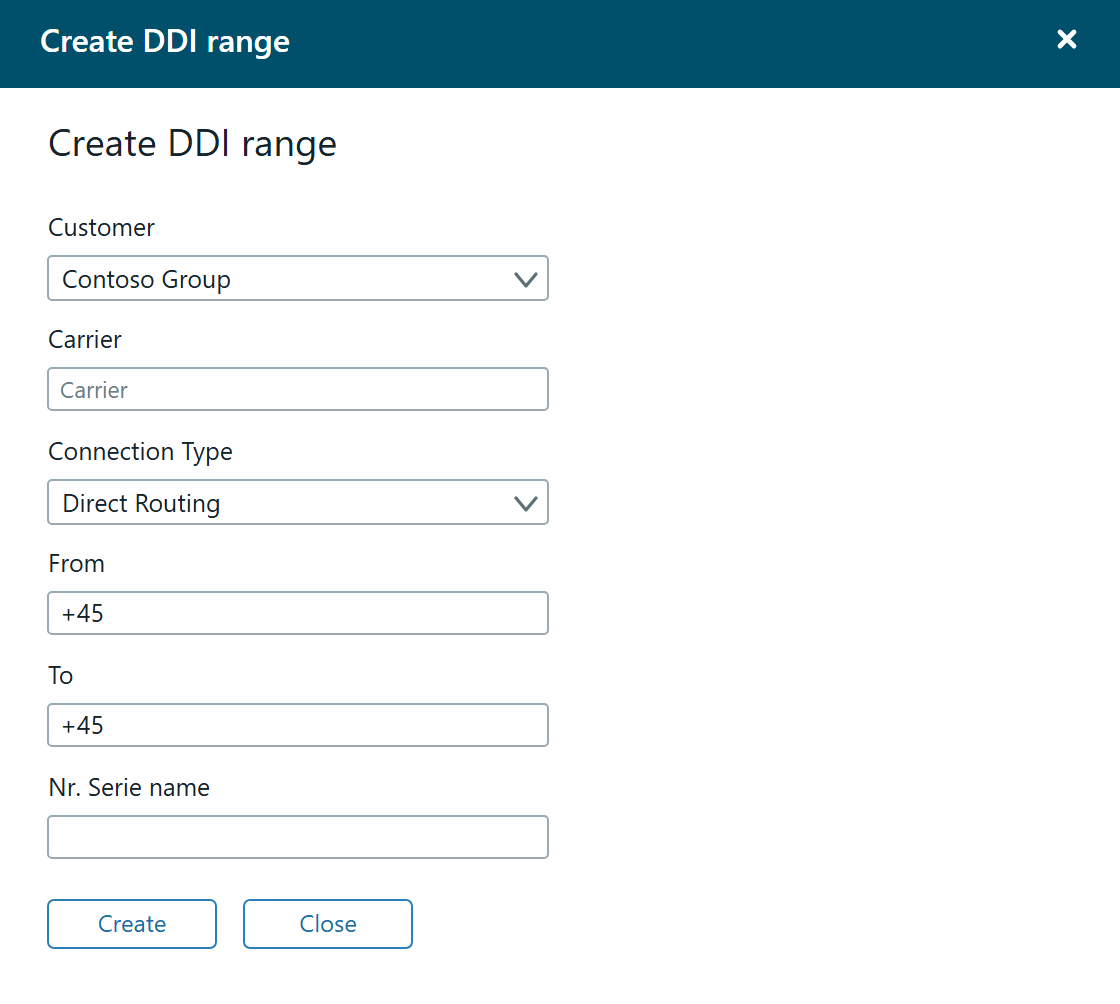
If you want to back out along the way, click Close. Nothing is saved until you press Create.
Name the range so it can be found again
The name is the only thing colleagues have to go on in the overview, and it sits side by side with carrier and interval. A name like DK Operator Connect or Legacy PBX DE tells you immediately what you are looking at. A name like Range 2 does not.
If you operate across several countries, put the country code first — the same principle as naming labels.
Ranges outside Teams Phone
A number range can be created whether or not it is used in Microsoft Teams Phone. That includes ranges that sit on a legacy platform, in a contact centre, or that you have ordered but not yet had ported.
This is precisely what makes the record complete: the numbers exist in DDI Manager even though Teams does not know them. Combined with labels you can mark what they are used for, so nobody assigns a number that is already in use somewhere else. See Labels in DDI Manager.
What the overview looks like afterwards
Under Settings → DDI ranges the ranges are listed with these columns:
- Company — the customer the range belongs to
- Name — the name you gave it
- Type —
DR,OCorCP - Carrier — what you entered in the free text field
- From and To — the first and last number in the interval
- Manual Utilization — see below
- Total — how many numbers the range contains
- In use — how many are assigned
About Manual Utilization: the column exists but stays empty for every range in a normal setup. If you need it, raise it with Performance Metrics.