
This guide builds one coherent flow: a number that lands in a queue with agents during business hours, goes to an operator outside business hours, and falls back to a reserve queue on overflow or timeout.
Build backwards
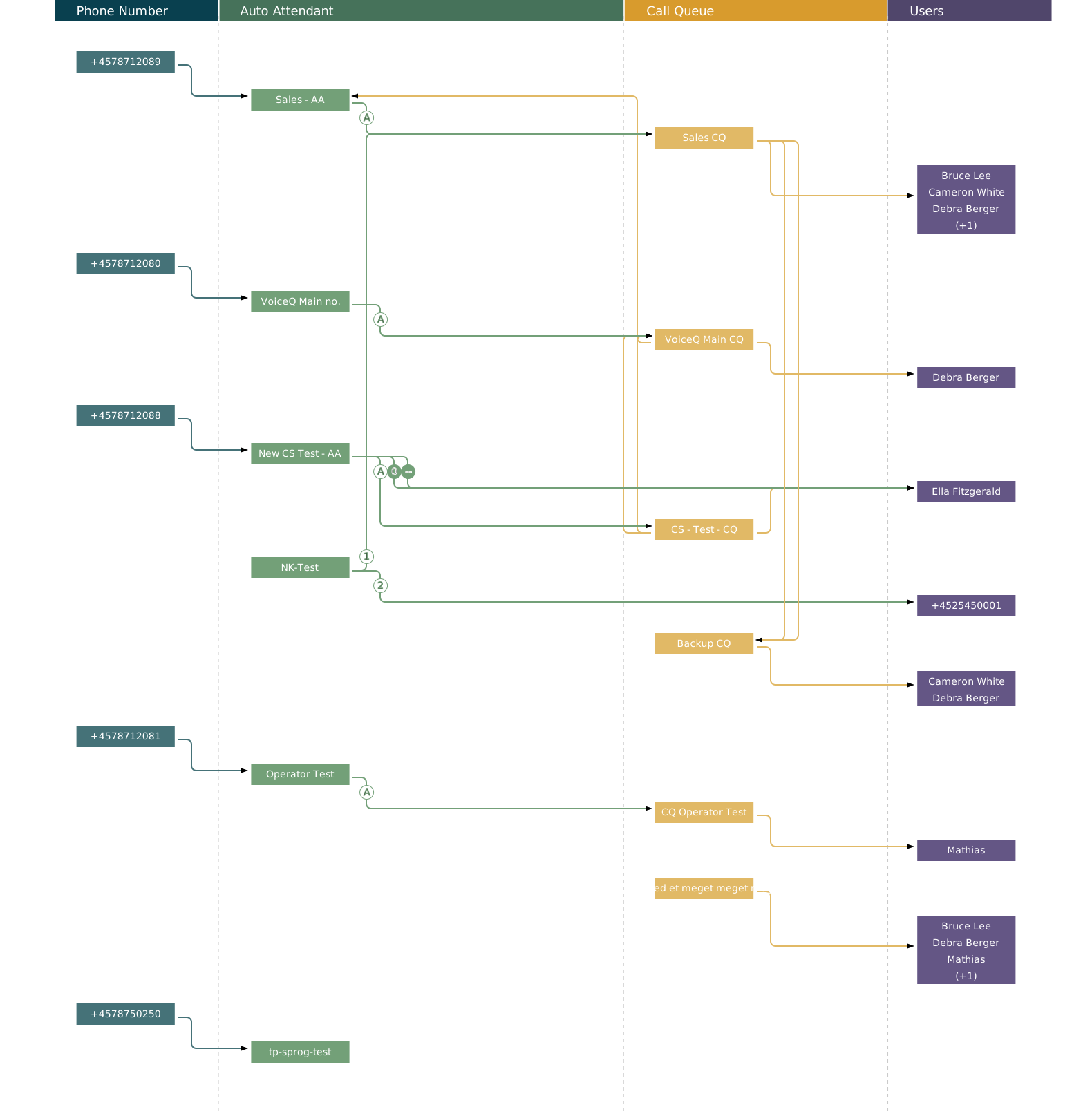
The dropdown lists can only point to objects that already exist. So create the reserve queue before the sales queue, and the sales queue before the auto attendant.
Step by step
- Create the reserve queue. Click the plus in the yellow Call Queue column header. Give it a name you will recognise in a dropdown — it appears as Name (Queue). Leave Queue type on Teams Call Queue.
- Create the primary queue. Repeat, using the queue's own name.
- Add agents. Open the queue, go to Call answering, and tick the users who should answer calls. Choose the Routing Method at the same time.
- Set the queue's fallback. Go to Failover and Timeout and point overflow, timeout and unmonitored at the reserve queue.
- Create the auto attendant. Click the plus in the green column header.
- Fill in Basics. Set Language and Time Zone. The time zone governs when business hours take effect — it must match the department the number serves.
- Define business hours. Under Business hours. Click Set default work hours to fill in every weekday at once.
- Set the call flow during business hours. Under Default call flow. Choose a greeting, set Call Route Options to Automatic, and point the action at Call Queue.
- Set the call flow outside business hours. Under After business hours callflow. Skip this and calls are treated identically around the clock.
- Attach the phone number. Under Phone numbers, the Add phonenumber button.
- Add holidays. Under Holidays.
- Delegate maintenance. Under Administration on both the auto attendant and the queue.
- Check it on the canvas. A missing mark means a missing setting.