
The strongest demo is not a walkthrough of fields. It is opening the canvas on an environment the customer recognises and letting them ask "where does a call to that number end up?" — and then answering it in three seconds.
Open with the picture, not the menu
Start with the canvas: four columns read left to right in the direction of the call, Phone Number → Auto Attendant → Call Queue → Users. See How to read the call flow overview.
Do not say very much. Let the customer look at it for ten seconds. Most of them start pointing and asking on their own — and then you are having a conversation about their setup instead of giving a product tour.
The three moves that sell
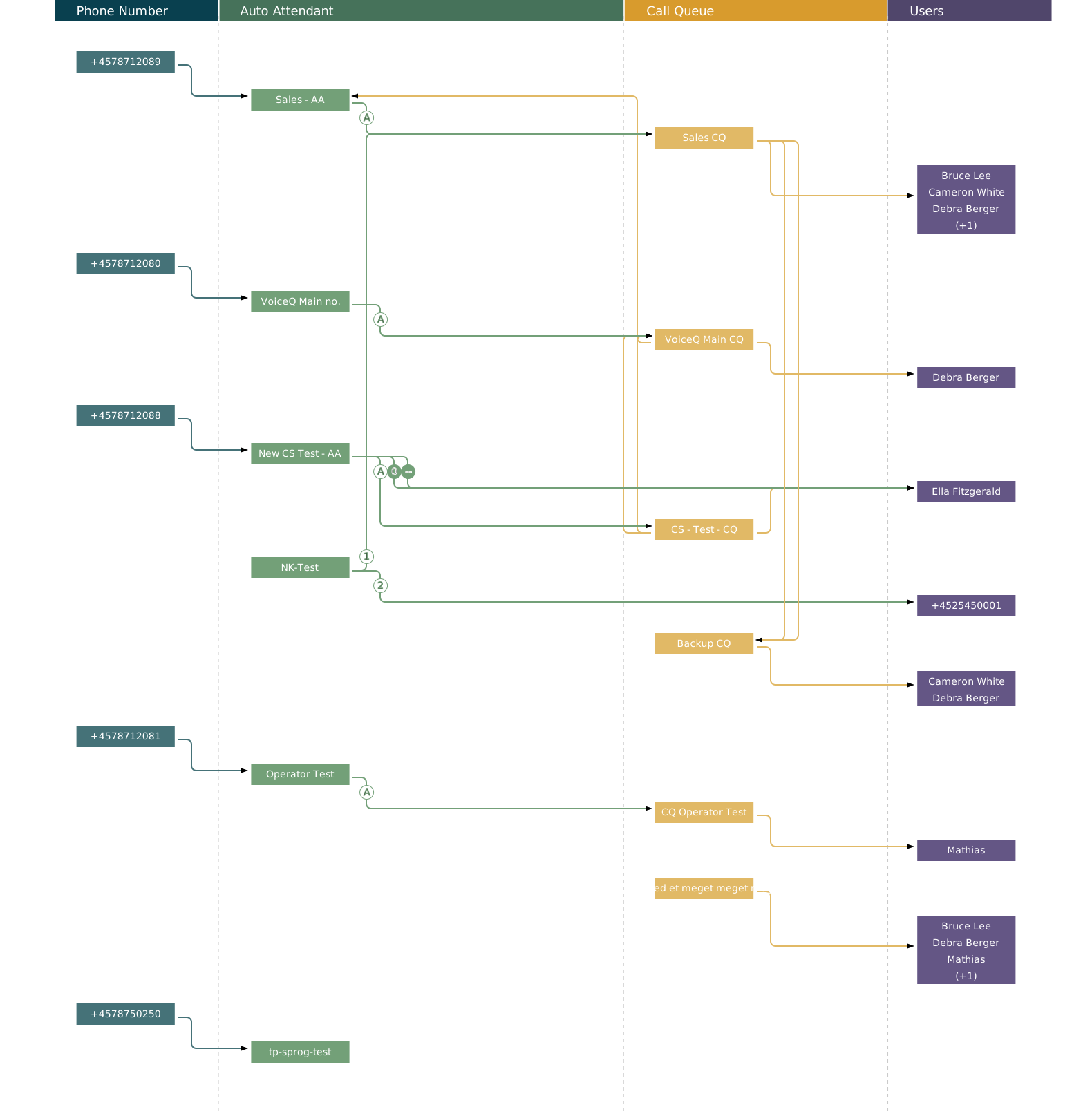
- Click a number. Everything else on the canvas dims and only the path for that number stands out. Say: "This is how you find out where a call ends up." It is the fastest demonstration of value in the product.
- Hover over a mark on a line. The tooltip explains the condition in plain text — for example Business hours: Automatically transfer call to Sales CQ (teams call queue). Say: "The system tells you itself why the call goes that way." This is where a technical buyer typically leans forward.
- Open Administration on a queue. Show the tick list of who may edit that particular queue. Say: "The head receptionist can change their own business hours. Without access to the Teams Admin Center." That is the argument that decides the deal with operations-led customers.
The marks — know them by heart
You will be asked about them in every single demo. Learn the five so you do not have to look them up. The full reference is in The marks on the connection lines.
| Mark | Colour | Meaning |
|---|---|---|
| A | Green | Automatic forwarding from an auto attendant. The tooltip distinguishes between Business hours and After Business hours. |
| Digit | Green | DTMF key press. A filled circle marks a key press outside business hours. |
| Dash | Green, filled | Operator. |
| Clock | Yellow | Timeout overflow from a queue. |
| No-entry sign | Yellow | Unmonitored overflow — no agents available. |
Questions you will get — and what you can answer
| Question | Answer |
|---|---|
| "Does it replace the Teams Admin Center?" | No. Teams Phone handles the calls. This makes the setup visible and lets you delegate maintenance. |
| "How quickly do we see changes from Teams?" | The time of the last synchronisation sits above the canvas with a refresh button. Show it — do not guess at an interval. |
| "Can we control who sees what?" | Yes, per auto attendant and per queue. Show the Administration section. |
| "Do you support our carrier?" | Calling Plan, Operator Connect and Direct Routing. |
| "Can we see call history?" | That is Call Analytics — a different area of VoiceQ365. Do not mix it into this demo. |
On saving — you can answer with confidence
Changes are saved by pressing Update and written straight back to the Teams Admin Center, where they are reflected. There is no draft step in between, so a change is live immediately. Mention it actively in the demo — customers ask about it, and it is a strong answer: no synchronisation delay, no double maintenance.