
Change opening hours
- Click the green box. That is the answering service for the line you want to change. A panel slides in from the right.
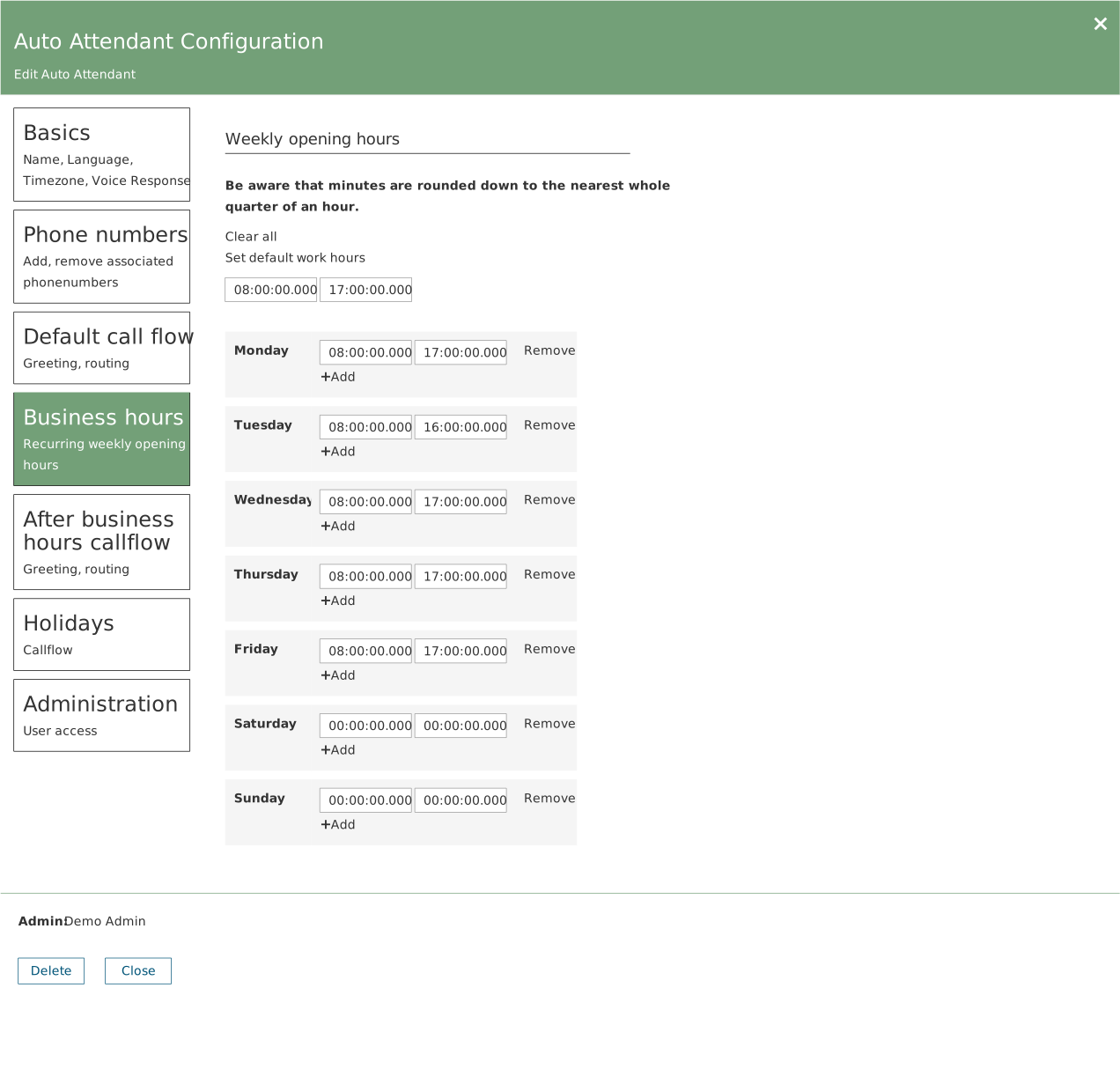
- Choose Business hours in the list on the left. You now see one row per weekday with a start and an end time.
- Adjust the times. If you close for lunch, click + Add on that day and create two periods — for example 08:00–12:00 and 12:30–16:00.
Minutes are rounded down. Enter 08:20 and 08:15 applies. The system works in quarter hours. It also says so at the top of the panel.
Add a public holiday
Click the green box, choose Holidays, and click the plus. Fill in a name, when it applies, and what should happen — typically that a message is played and the call is ended.
Holidays override the ordinary opening hours. Consider entering the whole year at once.
Add or remove a member of staff in a queue
- Click the yellow box. That is the waiting queue.
- Choose Call answering. Scroll down to Call Queue agents. The number in brackets shows how many are attached.
- Tick or untick. Search for the person in the search field if the list is long. Tick to add, untick to take them out.
Change the order staff receive calls in
Same place, under Routing Method:
| Choice | What happens |
|---|---|
| Attendant | Everyone gets the call at once. Whoever is quickest takes it. |
| Longest Idle | Whoever has been free the longest gets the call. |
| Round Robin | In turn, so it spreads evenly. The most common choice. |
| Serial | Fixed order — person 1 first, then person 2, and so on. |
Change the welcome message or the hold music
On the answering service you find the welcome message under Default call flow. On the waiting queue you find both the welcome audio and the hold music under Audio files.
You can either upload an audio file or type text for the system to read aloud.
If you change the hold music, check callback. How long it takes before the system offers to call back is tied to the length of the hold music. If you have callback switched on, review the settings afterwards.
Change what happens after closing time
Click the green box and choose After business hours callflow. Here you set what should happen outside the opening hours you entered above.
The most important mistake to avoid. If this is not set up, calls are treated the same around the clock. There is no warning — calls are simply put through at two in the morning. Always check that something is set here.