
Labels appear where you actually work with the numbers: DDI Manager → DDI Ranges.
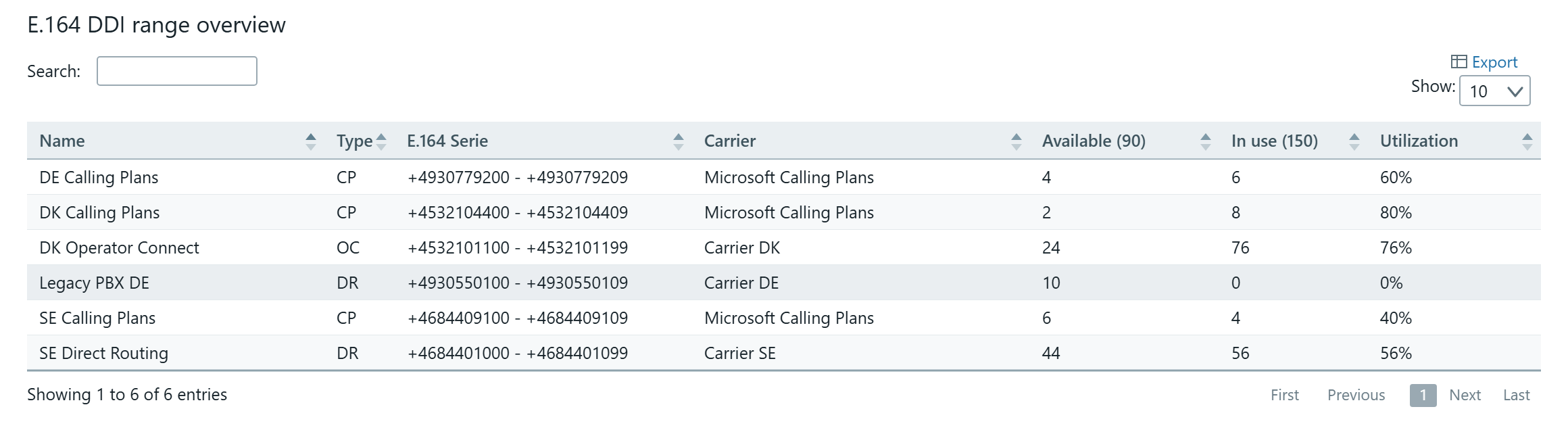
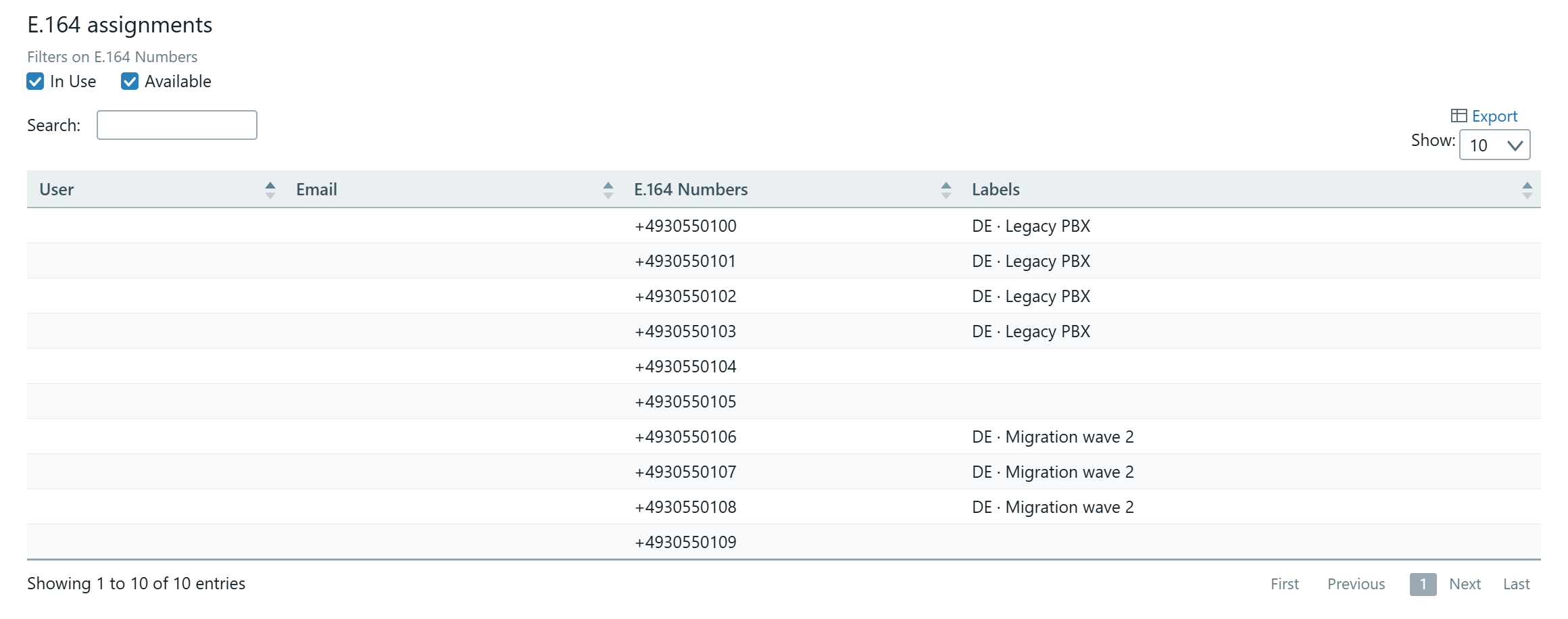
From this table you can:
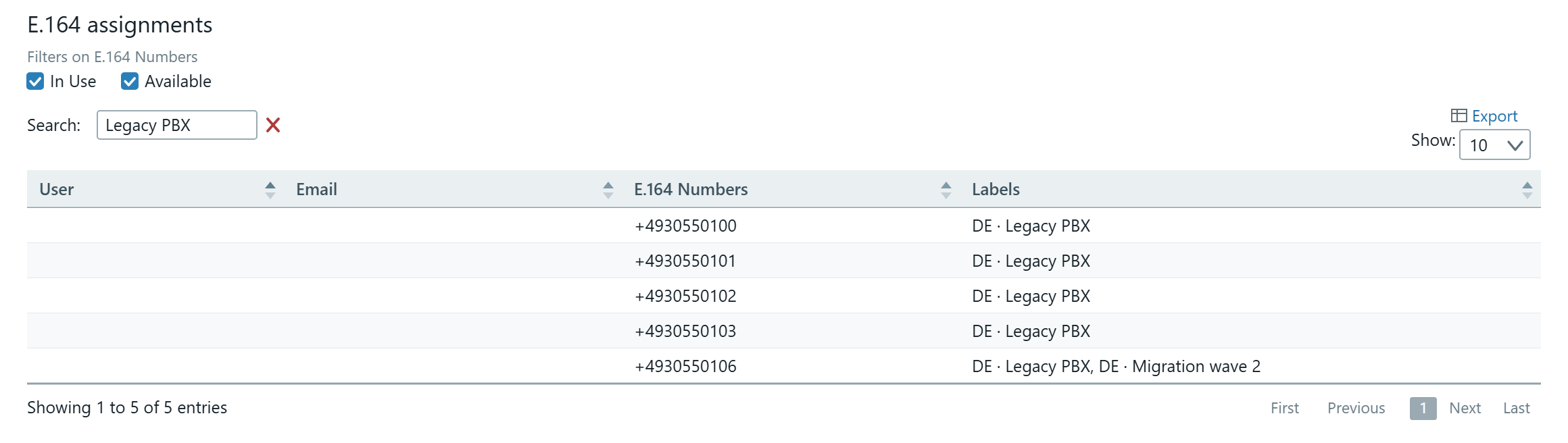
- search by label name and get every number carrying that label — across ranges too
- filter on
In UseandAvailableand thereby find available numbers with the right label - export the table to Excel via the
Exportlink — but without labels, see below
Labels cannot be exported. The Excel export from DDI Ranges does not include the Labels column, and labels do not appear under DDI Utilization, DDI History or User Management & Automation either. Labels exist only on screen, in E.164 assignments.
Follow-up therefore happens as a lookup rather than as a report: search for the label name and read the count in the "Showing 1 to N of N entries" line. If the figures need to go into a status meeting or a spreadsheet, they have to be noted manually.
A number can carry several labels
Labels are not mutually exclusive. If you put two labels on the same number, both are shown in the column separated by a comma.
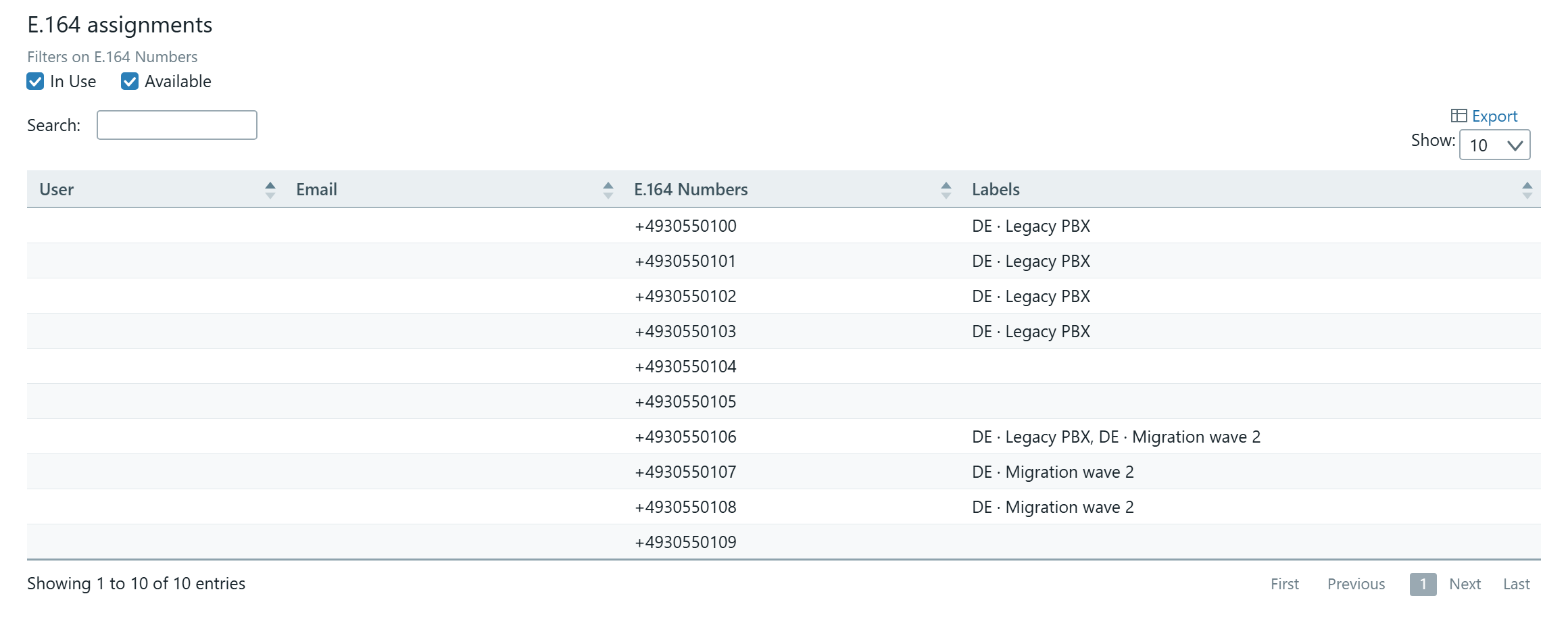
Avoid contradictory labels. The example above is precisely what you should not do: one label says "must not be assigned", another says something else. A colleague reading the row cannot know which applies. Stick to one label per number unless you have a clear and agreed reason to do otherwise.
The whole flow in order
The sequence diagram shows the logical order from end to end: who does what, which screen is involved, and when data actually reaches the number database.
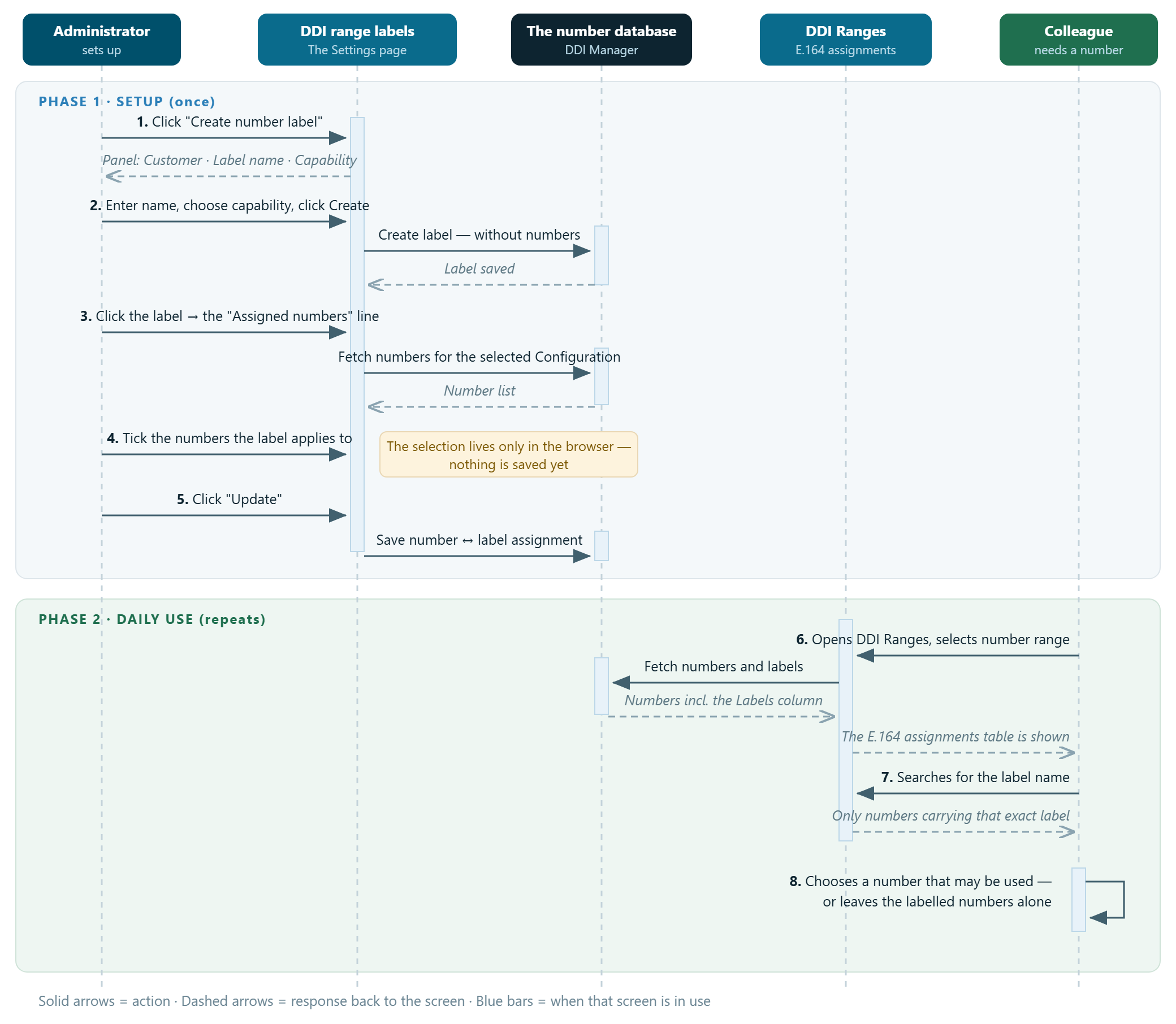
The vertical dashed lines are the five participants — two people and three screens or systems. Solid arrows are actions, dashed arrows are responses back. The blue bars show how long a screen is in use. The only place data is saved is the two arrows pointing at the number database in phase 1.