
As a Teams Phone administrator you already have a view of your numbers. Under Voice → Phone numbers in the Microsoft Teams admin center you can see the numbers that have made it into the tenant, who they are assigned to, and what type they are — Microsoft Calling Plans, Operator Connect or Direct Routing.
That is a useful view. It just has one clear boundary: it only knows the numbers Teams knows.
In practice, that means the following does not show up:
- Numbers in use somewhere else. A number that terminates on a legacy PBX, in a contact centre or on an emergency line does not exist in Teams — but it does exist in the range you received from your provider, and it must not be reused.
- Why a number is free. Teams can tell you that a number is unassigned. It cannot tell you whether it is genuinely free, reserved for a project, in quarantine after someone left, or in the process of being cancelled.
- The intent behind a number range. The fact that the last 30 numbers in a range are earmarked for call queues and auto attendants is written down nowhere. It is something a colleague happens to know.
- Numbers not yet ported. Ranges you have ordered, or are in the middle of moving, do not exist in Teams until porting completes.
None of this is a shortcoming in Teams Phone. The Teams admin center is built to administer Teams — not to keep the books on a telephone number estate that is older than Teams and broader than Teams.
The number estate is bigger than Teams
The larger the organisation, the clearer the gap between "the numbers in Teams" and "our numbers". Three things drive that gap.
Several platforms at the same time. Very few organisations moved everything to Teams Phone in one go. There is nearly always something left behind: a production line on a legacy PBX, a contact centre from another vendor, fax numbers for a public authority, alarm and lift lines. Those numbers sit side by side with the Teams numbers in the same range from the same provider.
Several countries, several carriers. An international organisation typically has different numbering plans, different providers and different connectivity types per country — perhaps Operator Connect in one country, Direct Routing in another and Microsoft Calling Plans in a third.
Several people doing the work. Numbers are assigned by an IT support engineer in Denmark, an external partner in Germany and a telecom colleague in Sweden. If the only documentation is a spreadsheet maintained by one person, then in practice the documentation is not there.
- Is +45 32 XX XX 12 available? — Where the answer sits without a shared database: Teams says "unassigned". The spreadsheet says nothing. The colleague who knows it used to sit on the old switchboard is on holiday.
- Which numbers can I give the 12 new starters in Malmö? — Where the answer sits without a shared database: In the Swedish range — but the last 20 are earmarked for queues, and the first 5 have not been ported yet.
- What do we have left in Germany? — Where the answer sits without a shared database: Requires a lookup with the German provider plus a conversation with the partner who administers the tenant.
- Who had this number before? — Where the answer sits without a shared database: Does not exist, unless somebody wrote it down.
DDI Manager as a shared number database
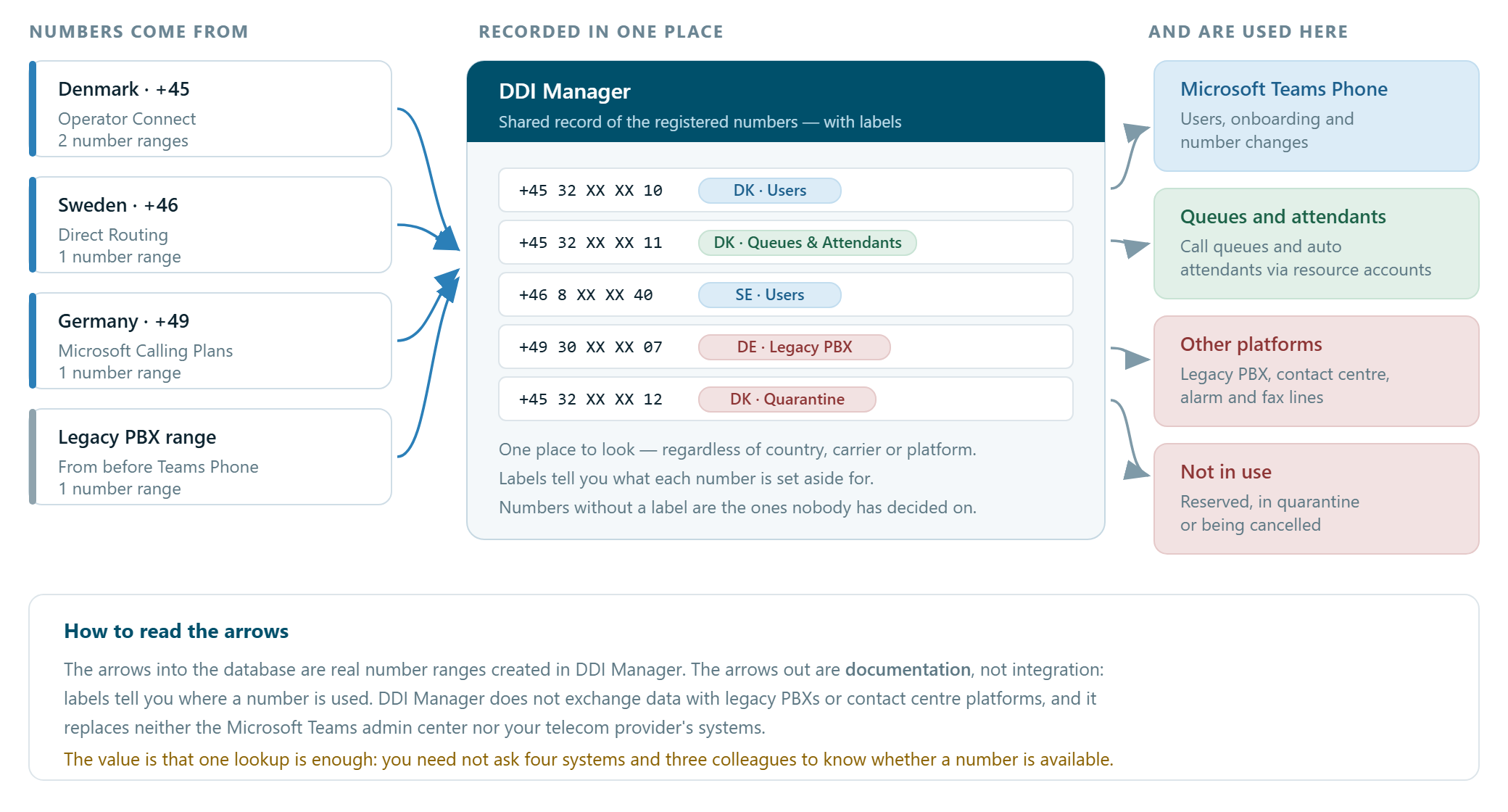
DDI Manager can act as a master data layer for fixed numbers in Microsoft Teams Phone environments. In practice that means number ranges are created in one place, and every individual number has one row that every administrator sees the same version of.
The row itself tells you whether the number is in use in Teams. The label tells you everything else — and that is what lifts the database from "Teams numbers" to "our numbers".
What DDI Manager does:
- Shows available and assigned numbers together, across Microsoft Calling Plans, Operator Connect and Direct Routing
- Lets you reserve numbers so a colleague does not take them
- Carries labels and metadata on the numbers
- Keeps history of a number's previous use
- Supports administration across several tenants and several PSTN providers
- Provides role-based access instead of broad administrative access when somebody merely needs to look a number up
What it is not. DDI Manager replaces neither the Microsoft Teams admin center, Microsoft Entra ID nor your telecom provider's systems, and it is not a telecom operator. Nor does it exchange data with legacy PBXs or contact centre platforms. A number used on another platform does not find its own way into DDI Manager — somebody has to write it in as a label. The value depends directly on that being done.
The prerequisite. A number can only carry a label if it exists in a number range in DDI Manager. Ranges used in Teams are typically there already — and a number range can be created whether or not it is used in Teams Phone. Legacy ranges, contact centre ranges and ranges you have ordered but not yet had ported can be entered on equal terms with the rest. That is what makes the record complete.
What is a label?
Picture a box holding 200 keys. They look alike, but they open very different doors: some offices, some the server room, and some are on loan to an external company and must not be touched at all. Without tags you have to remember all of it — or ask a colleague who usually knows.
A label in DDI Manager is three things gathered in one place:
- a name that you decide — for example "DK · Reserved for call queues"
- one or more capabilities describing what the numbers are intended for
- a list of phone numbers the label applies to
The label changes nothing about the number itself. The number still rings as before, and Teams behaves as before. What the label does is make knowledge about the number available to everyone working in the system.
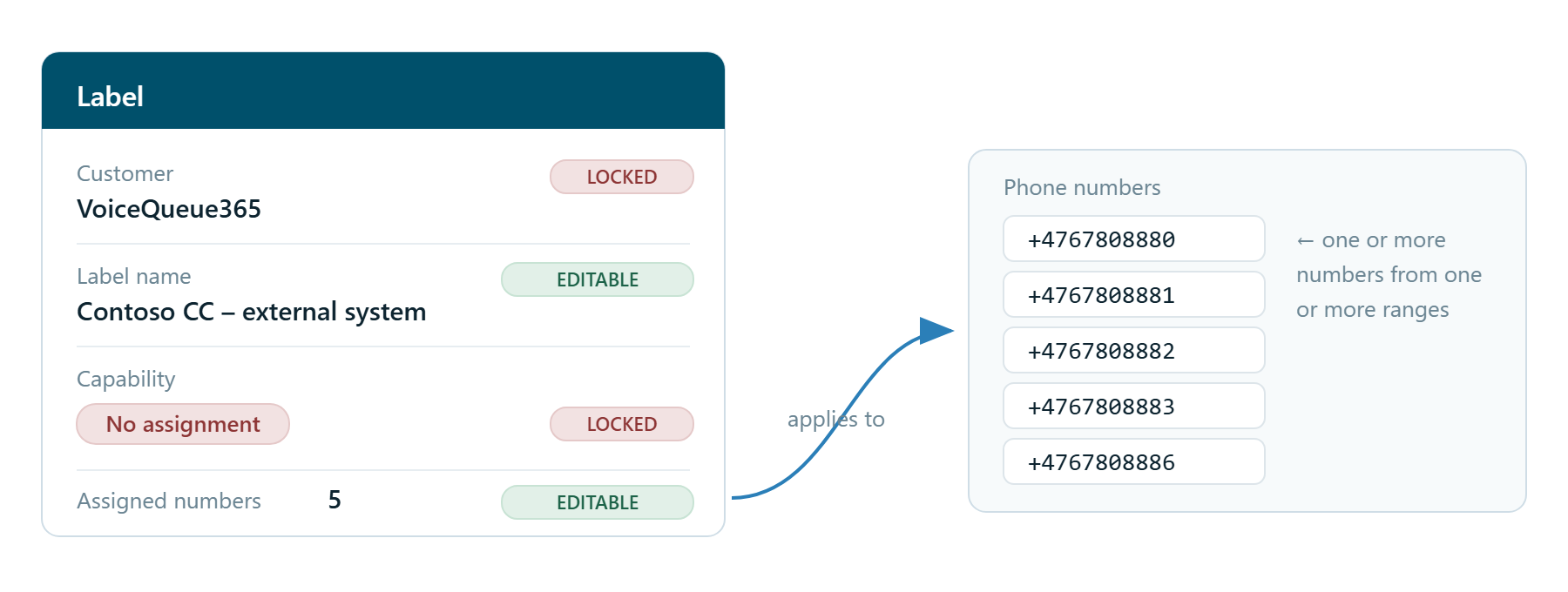
- Customer — What it is: The customer or tenant the label belongs to. Relevant when you administer several tenants. · Can it be changed afterwards?: No — chosen at creation and not shown when editing
- Label name — What it is: Free text. The name shown next to the numbers in the number overview. · Can it be changed afterwards?: Yes
- Capability — What it is: One or more of the fixed capabilities. · Can it be changed afterwards?: No — locked after creation
- Assigned numbers — What it is: The specific phone numbers the label applies to. · Can it be changed afterwards?: Yes
Where to find Labels
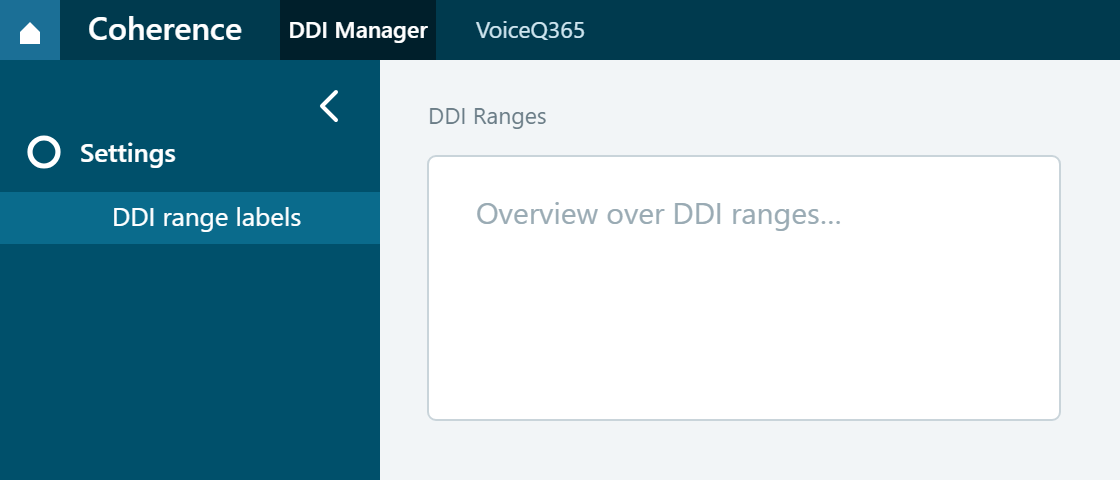
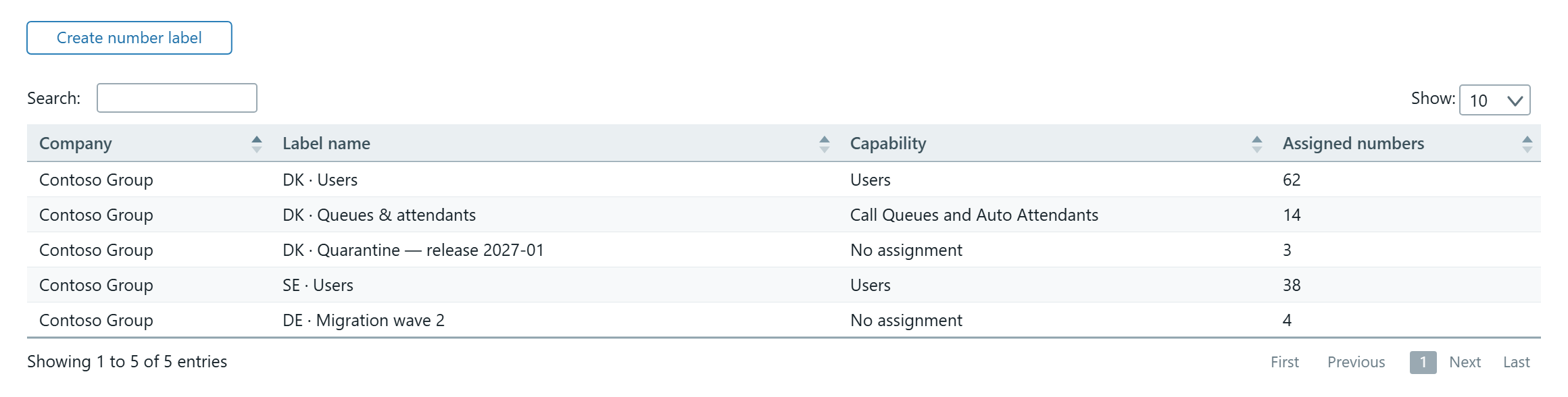
The feature sits in the side menu under DDI Manager → Settings → DDI range labels.
Where to go next
- The capabilities — what No assignment, Users and Call Queues mean
- Create a label
- Assign numbers to a label
- Find labels in the number overview
- Naming labels across countries
- Examples: six scenarios from a mixed number estate
- FAQ and pitfalls